A speed test is a snapshot of how fast your connection is performing at that moment, on that device, in that spot in the house. It is not a full grade of your internet plan. A weak result can mean the plan is under-delivering, or it can mean the test was loaded down by Wi-Fi, other devices, or a tired laptop. The mistakes below are the ones that most often scramble that picture.
1. Testing only on Wi-Fi
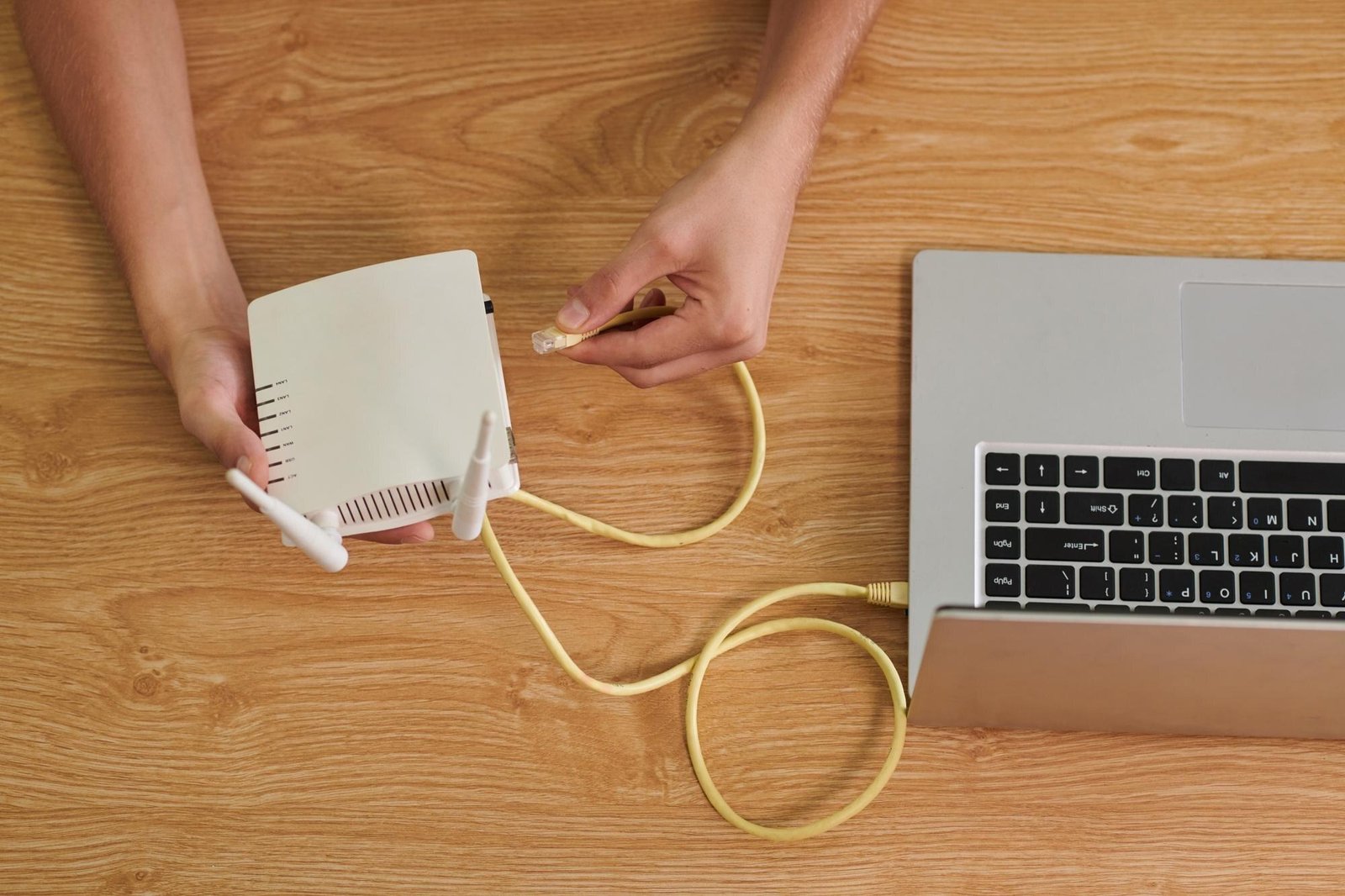
Wi-Fi is convenient, and it is also where a lot of slowdowns hide. Distance from the router, walls, interference from a microwave or a neighbor’s network, and an older wireless adapter can all cut the number you see. If you have an Ethernet cable, plug the computer directly into the router or gateway and run the test again.
A wired result is the closer reading of the internet service itself. A Wi-Fi result is a reading of the service plus the wireless path inside the house. If the wired test looks fine and the wireless one does not, the plan may be fine; the home network is the place to work.
2. Leaving other devices and downloads running
A test shares the connection with everything else that is already using it. A TV updating itself, a cloud backup, a game download, or a second laptop on a video call will pull the score down. Pause large transfers, stop streaming on other screens if you can, and close extra browser tabs before you test.
You are trying to see what the connection can do, not what is left over after the household’s usual traffic.
3. Standing in the worst Wi-Fi spot in the house
If you must test on Wi-Fi, do not do the first run from a back bedroom or a basement couch and treat that as the plan speed. Move closer to the router, in the same room if possible, and test again. A router stuffed in a cabinet, sitting on the floor, or parked behind a TV can make a healthy connection look weak.
For day-to-day use you still care about the far room. Just do not confuse a poor living-room Wi-Fi result with a failure of the line into the house.
4. Using a device that cannot keep up
An older phone, a budget tablet, or a laptop with a worn-out wireless card may not be able to show the full speed of the plan, especially on faster connections. If a test looks surprisingly low, try a second device, preferably a recent computer on Ethernet.
The test can only report what that device was able to move. A weak endpoint will look like weak internet.
5. Running the test once, at a busy hour, and stopping there
Networks can be busier in the evening. One low score at 8 p.m. is a data point, not a complete picture. Run the same home internet speed test a few times: once on a wired connection, once on Wi-Fi close to the router, and once at a quieter time of day if you can.
Write down download, upload, and ping each time, plus whether you were wired or on Wi-Fi. A pattern is much more useful than a single screenshot.
6. Reading only the download number
Download speed is what people notice first because it covers streaming and ordinary browsing. Upload speed is what you use to send data out: video calls, cloud backups, live streaming, and sharing large files. Ping, or latency, is the delay before data starts moving. Jitter is how much that delay jumps around.
A test can show a strong download and still feel rough on a call if upload is weak or ping is high. Look at all three, and treat jitter as a clue when calls or games stutter even though the download number looks fine.
7. Comparing a messy Wi-Fi result with the number on the plan
Plan speeds are typically measured under better conditions than a phone on the porch. If the advertised figure and your first Wi-Fi test disagree, run a wired test with other traffic stopped before you assume the service is short. If the wired results are repeatedly far below the plan at more than one time of day, then you have a stronger case for asking the provider to look at the line.
A speed test also does not tell you whether a different technology, such as fiber, would be available at the address. It only describes the connection you already have.
A simple way to run the next test
Plug in Ethernet if you can. Restart the modem and router if the results have been odd for a while, then wait until the lights look normal. Close extra apps. Run the test, record download, upload, and ping, and note whether you were wired. Repeat once. If you also need a Wi-Fi reading, take that second, from a realistic spot, and label it as Wi-Fi.
FAQ
Why is my speed test lower than my plan? Wi-Fi distance, other devices, an older computer, and a busy hour can all reduce the result. A wired test with nothing else downloading is the fairer comparison with the plan.
Should I restart the router before I test? If recent results have been erratic, a restart is a reasonable step. Give the equipment a few minutes to come back online, then test.
Does a speed test measure my Wi-Fi or my internet plan? It measures the path from that device to the test server. On Wi-Fi, that path includes the wireless network. On Ethernet, it is closer to the internet service itself.
Is one test enough? One test is a snapshot. A few tests, on a wire and at more than one time of day, give you a pattern you can actually use.
What do ping and jitter tell me? Ping is delay. Lower is better for calls and games. Jitter is how much that delay changes. High jitter can make a call feel rough even when download looks fine.
About the Author
Jags Kandhari writes about home internet, Wi-Fi, and broadband options across the United States. He spends his time breaking down plans, connection types, and everyday troubleshooting so readers can make sense of their service without the jargon. His guides appear on Reliable Internet Inc.